
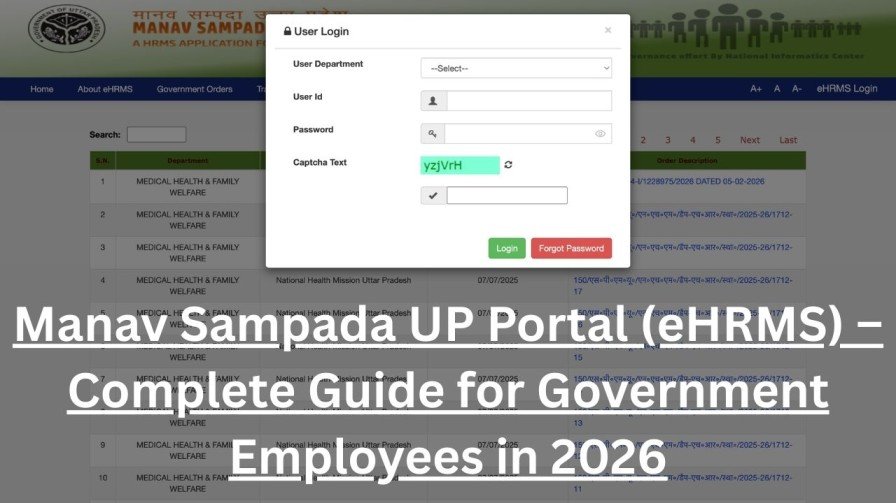
If you are a government employee in Uttar Pradesh, one digital platform sits at the very heart of your professional life — the Manav Sampada UP Portal, officially called the UP eHRMS (Electronic Human Resource Management System). Accessible at ehrms.upsdc.gov.in, this system brings together every aspect of public service employment — from salary management and leave applications to transfers, pension processing, and annual property returns — all under one roof.
With over one million active users across departments including Basic Education, Medical Health, Revenue, Police, and Rural Development, the platform has become an indispensable tool in UP’s digital governance journey. The 2026 version introduces smarter features, tighter security protocols, and improved compliance tracking, making it more important than ever to understand how to use it correctly.
How to Login to Manav Sampada UP Portal (eHRMS Login – 2026 Guide)
Step 1 – Visit the Official Website
Always open your browser and go directly to https://ehrms.upsdc.gov.in. Bookmark this URL to protect yourself from phishing websites that mimic the portal’s appearance.
Step 2 – Click on “eHRMS Login”
On the homepage, find and click the eHRMS Login button, typically located in the upper-right area of the screen.
Step 3 – Select Your State and Department
- State: Choose “Uttar Pradesh” from the dropdown.
- Department: Select the code matching your department. Basic Education teachers should pick EDUBASIC; medical staff should select MEDHLTH. The 2026 interface features a smart search bar to make this faster.
Step 4 – Enter Your Login Credentials
- User ID: Your unique 8-digit Employee ID. You can also use your Aadhaar-linked registered mobile number as an alternative.
- Password:
- New users (2026 default): Use the first three letters of your first name in UPPERCASE + the last four digits of your Aadhaar number. For instance, if your name is “Suresh” and your Aadhaar ends in 7890, your default password would be SUR7890.
- Returning users: Enter the strong password you previously set.
Step 5 – Complete the Security CAPTCHA
Type the alphanumeric code shown on screen. An audio-assisted CAPTCHA option is also available for accessibility.
Step 6 – Click Login
After successful authentication, you will land on your personalized Manav Sampada Dashboard for 2026.
⚠ Important Security Note: On your very first login, the system will compulsorily prompt you to change the default password. Choose something strong — mixing uppercase, lowercase, numbers, and symbols — to comply with the updated 2026 cybersecurity policy.
Forgot Your Employee ID or Password? Here’s What to Do
Recovering a Lost Employee ID
- Click the “Forgot Employee ID?” link on the login page.
- Enter your Aadhaar number and verify via OTP sent to your registered mobile.
- Your 8-digit ID will be displayed immediately.
- Alternatively, check your digital salary slip, appointment order, office ID card, or service book.
Resetting Your Password
- Click “Forgot Password?” on the login page.
- Enter your Employee ID and registered mobile number.
- An OTP will arrive within seconds. Follow the on-screen steps to set a new password.
- This is a fully self-service process — no need to contact your department.
How to Download Your Salary Slip from Manav Sampada
Your digital salary slip is required for bank loans, visa applications, income tax filings, and more. Here’s how to access it quickly:
- Log in to the portal and reach your dashboard.
- Navigate to Employee Services → Payroll Management → Salary Slip.
- Select the Financial Year (e.g., 2025–26) from the dropdown.
- Choose the specific Month (e.g., February 2026).
- Click Generate / Download to open the salary slip as a password-protected PDF.
- The PDF password is usually your Employee ID or Aadhaar number.
Pro Tip for EDUBASIC Teachers: Your salary slip will include department-specific deductions and allowances. Always cross-verify details like UAN, GPF subscription amount, and TDS deducted.
Applying for Leave on the Manav Sampada Portal
The 2026 leave module is faster and smarter than ever. Here is a step-by-step walkthrough:
Standard Leave Application
- Go to Dashboard → Employee Self-Service → Apply for Leave → New Application.
- Select your Leave Type from the menu (Earned Leave, Medical Leave, Child Care Leave, etc.). Your live leave balance is displayed right next to each option.
- Choose your Leave Dates using the interactive calendar. The system automatically excludes public holidays and calculates working days.
- Write a clear Reason (minimum 20 characters as per 2026 norms). Your contact number auto-fills.
- Upload the required documents in PDF, JPEG, or PNG format (max 2MB each):
- Medical Leave → Digitally signed doctor’s certificate
- Maternity Leave → Doctor’s note with expected delivery date
- Child Care Leave → Child’s birth certificate and relevant supporting proof
- Preview your application carefully, then click Submit. Note down the unique Application ID (format: MS/UP/26/XXXXXX) for future reference.
Tracking Your Leave Status
Go to Dashboard → My Applications → Track Leave. The color-coding makes it easy:
- 🟢 Green = Approved (download the QR-coded approval order)
- 🟡 Yellow = Pending (send a follow-up reminder after 3 days)
- 🔴 Red = Rejected (read the officer’s remarks to understand why and reapply)
Emergency Leave – Rule 19.3 Fast Track
Caught off-guard by a sudden family crisis? The 2026 portal has you covered:
- Check the “Medical Emergency / Unforeseen Circumstances” box when applying.
- The system grants provisional auto-approval for up to 96 hours.
- Within 5 working days, upload your supporting documents through the “Regularize Emergency Leave” module on your dashboard.
Key Services Available on Your 2026 Dashboard
Once logged in, the Manav Sampada dashboard offers a rich set of tools. Here are the most important ones:
Financial Services
Access your password-protected digital salary slips, manage your GPF (General Provident Fund) account, request advances, and download Form 16 for tax purposes — all without visiting any government office.
Digital e-Service Book
Think of this as your career’s permanent record. Every posting, promotion, and personal detail is stored here in tamper-proof form. The 2026 version adds a Verification Log, which shows exactly when your records were accessed and by whom — a transparency feature appreciated by thousands of employees.
Transfer and Posting Module
Check your eligibility based on seniority points, select your preferred district postings, submit your application, and track progress in real time. Once approved, the digital posting order is issued directly to your dashboard.
Annual Property Returns (Mandatory)
Filing your immovable property declaration by December 31st each year is not optional — it is a compliance requirement. Access this through Dashboard → Compliance. Failure to file on time results in official remarks entered into your service record.
Annual Confidential Report (ACR)
View and formally acknowledge your ACRs submitted by reporting officers, ensuring your service file remains up to date.
Manav Sampada for Basic Education (EDUBASIC) Department
Teachers and staff under the UP Basic Education directorate have dedicated workflows on this platform. Always ensure you select EDUBASIC during the department selection step, as this connects you to the correct server and service set.
Key services available for Basic Education employees include leave management, e-Service Book access, inter-district transfer applications with seniority-based vacancy lists, and ACR acknowledgment.
m-STHAPANA 2.0 – Official Mobile App
For employees who prefer managing things on the go, the m-STHAPANA 2.0 app is the official companion to the portal. Using it, you can:
- Apply for and track leaves
- Check and download salary slips
- Receive real-time notifications
- Access your digital ID card
Download it only from the official Google Play Store or Apple App Store. Never install third-party versions that claim to offer similar functionality — these pose serious data security risks.
Manav Sampada Helpdesk and Support Contacts
| Problem Type | Who to Contact |
|---|---|
| Technical issues (login errors, page failures, app crashes) | NIC Helpdesk – ehrms-up@gov.in |
| Data errors (name, DOB, service history, leave/salary discrepancies) | Your department’s Nodal Officer (listed in the portal directory) |
| Employee ID or Password recovery | Use the self-service links on the login page |
Quick Tip: Always keep your Employee ID and relevant document numbers handy when reaching out to support — it significantly speeds up resolution.
Frequently Asked Questions (FAQs)
Q1. What departments use the Manav Sampada portal? The portal serves employees across Basic Education, Secondary Education, Medical and Health, Police, Revenue, Rural Development, Public Works Department, Agriculture, Finance, and Social Welfare departments, among others.
Q2. What is the default password format for new users in 2026? It is the first three letters of your official first name in UPPERCASE, followed by the last four digits of your Aadhaar number. Example: Name “Anjali,” Aadhaar ending 3456 → Default password: ANJ3456.
Q3. Is filing Annual Property Returns compulsory? Yes, absolutely. The deadline is December 31st each year. Non-compliance leads to adverse remarks in your official service record.
Q4. How long does pension processing take through the portal? With complete and accurate documentation submitted through the portal, pension orders can be sanctioned within 7 working days in many cases, as the transparent tracking system streamlines each stage.
Q5. Can I check attendance records from previous years? Yes. Navigate to the Attendance section and use the month and year filters to access historical attendance data from previous years.
Q6. What is Rule 19.3 Emergency Leave? It is a provision for genuine unforeseen situations (medical or otherwise) that grants provisional auto-approval for up to 96 hours. Supporting documents must be submitted within 5 working days to regularize the leave.